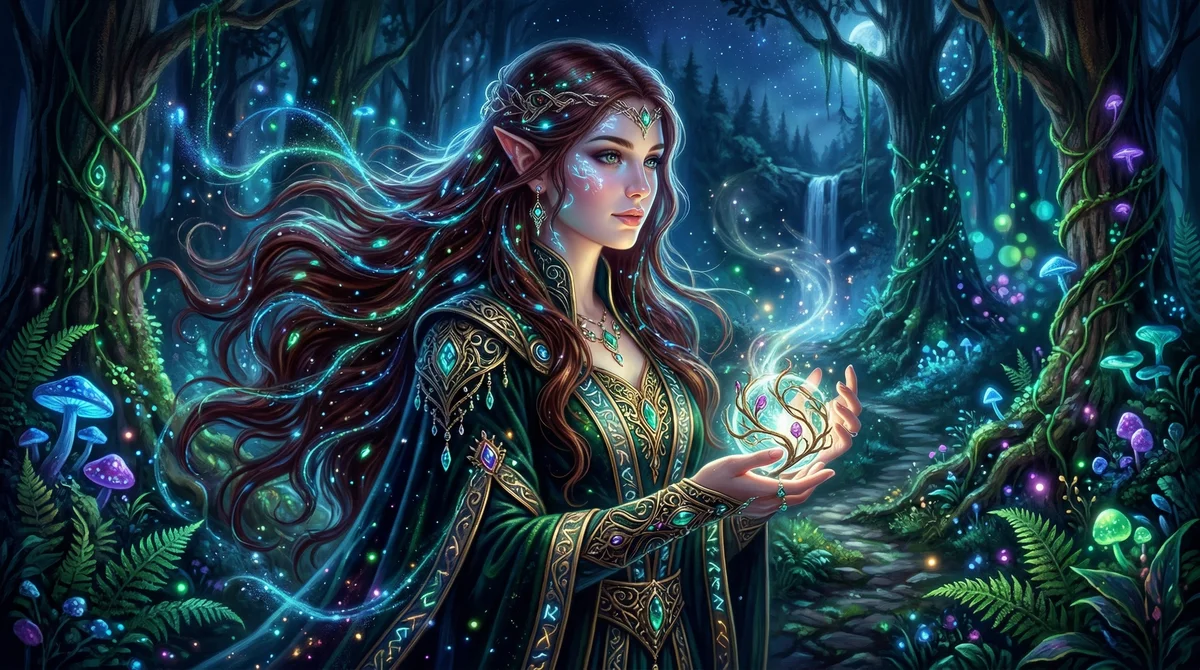
Midjourney V7 Complete Guide: Mastering Character Consistency and Creative Workflows
Midjourney has long dominated the AI art landscape, not because it was the most controllable tool, but because it consistently delivered breathtaking beauty straight out of the box. While Stable Diffusion offered granular control, Midjourney offered magic. With V7, that gap has vanished.
Released in early 2026, Midjourney V7 isn’t just an incremental upgrade—it’s a fundamental shift in how we interact with generative AI. Native character consistency, dramatically improved text rendering, and a refined web interface finally give professionals the control they need without sacrificing the artistic excellence that made Midjourney famous.
This guide covers everything you need to master V7, from basic parameters to advanced workflows that will transform your creative process.
What’s New in Midjourney V7
The evolution from V6 to V7 addresses the biggest complaints creators have voiced for years:
| Feature | V5/V6 | V7 |
|---|---|---|
| Text Rendering | Often gibberish or misspelled | Legible, accurate text handling |
| Prompt Understanding | Required “keyword stuffing” | Understands natural, conversational language |
| Character Consistency | Difficult, complex workarounds | Native support via Character Reference tags |
| Interface | Exclusively Discord | Dedicated web app with visual controls |
| Speed | Slower for high detail | Optimized “Turbo” modes standard |
| Hand/Finger Accuracy | Infamous AI hand problem | Anatomically correct rendering |
But the improvements run deeper than feature checklists. V7 represents a philosophical shift: Midjourney is no longer just an image generator; it’s a creative partner that understands intent, not just keywords.
Getting Started with Midjourney V7
Access and Setup
If you’ve used previous versions, the transition is seamless:
- Visit midjourney.com
- Sign in with your existing Discord account
- The web interface provides full access to V7 features
Subscription Plans (2026):
| Plan | Price | Fast Hours | Best For |
|---|---|---|---|
| Basic | $10/month | 3.3 hrs | Hobbyists, experimentation |
| Standard | $30/month | 15 hrs | Regular creators |
| Pro | $60/month | 30 hrs | Professionals, commercial use |
| Mega | $120/month | 60 hrs | High-volume production |
Note: V7 requires a paid subscription. There’s no free tier, but the Basic plan is sufficient for learning and moderate usage.
The Web Interface
V7’s web app represents a massive upgrade from Discord-only access:
- Visual prompt builder: Click to add parameters instead of typing
- Image organization: Folders, favorites, and search
- Prompt history: Access and remix previous generations
- Gallery management: Curate and showcase your work
- Advanced editing: Inpainting, outpainting, and refinement tools
For power users, Discord commands still work. But most creators will find the web interface faster and more intuitive.
The Anatomy of a Perfect Prompt
Mastering V7 starts with understanding prompt structure. A well-crafted prompt follows this formula:
[Subject] + [Environment/Setting] + [Style/Aesthetic] + [Lighting] + [Camera/Composition] + [Parameters]1. Subject: Be Specific
V7 understands nuance. Instead of “a woman,” try:
a 30-year-old Japanese woman with shoulder-length black hair,
wearing a red silk kimono with gold embroidery,
holding a vintage film camera
The specificity helps V7 render exactly what you envision.
2. Environment: Set the Scene
Describe context and atmosphere:
standing in a neon-lit Tokyo alley at night,
rain-slicked streets reflecting colorful signs,
steam rising from a nearby ramen shop
3. Style: Define the Aesthetic
V7 responds beautifully to style keywords:
- “Cyberpunk aesthetic, retrofuturistic”
- “Studio Ghibli inspired anime”
- “Oil painting, impressionist brushstrokes”
- “Photorealistic, 8K, hyperdetailed”
- “Art Nouveau, Alphonse Mucha influence”
4. Lighting: Create Mood
Lighting dramatically affects results:
- “Volumetric fog with backlight”
- “Neon rim lighting”
- “Soft diffused studio lighting”
- “Dramatic chiaroscuro”
- “Golden hour sunlight”
5. Camera/Composition: Technical Control
Specify the shot:
- “Macro photography, shallow depth of field”
- “Dutch angle, cinematic”
- “Bird’s eye view”
- “Close-up portrait, 85mm lens”
Complete Example Prompt
A 25-year-old Scandinavian woman with flowing platinum blonde hair,
wearing an ethereal white gown, standing in an ancient forest clearing
surrounded by fireflies, fantasy art style with magical realism,
soft moonlight filtering through misty trees, medium shot with
shallow depth of field, 4K, highly detailed --ar 2:3 --v 7 --stylize 500
Essential V7 Parameters
Parameters are where V7’s real power lies. Added at the end of prompts with double dashes, they give you granular control:
Aspect Ratio (—ar)
--ar 1:1    Square (default)
--ar 16:9   Widescreen/landscape
--ar 9:16   Vertical/mobile
--ar 2:3    Portrait photography
--ar 21:9   Ultra-wide cinematic
Stylize (—stylize or —s)
Controls artistic interpretation (0-1000):
--s 0       Literal prompt interpretation
--s 100     Subtle artistic touch
--s 250     Default balance
--s 500     Strong artistic influence
--s 1000    Maximum artistic freedom
Higher values give Midjourney more creative license. Lower values stick closer to your literal description.
Chaos (—chaos or —c)
Controls variation between the four generated images (0-100):
--c 0       Very similar results
--c 25      Slight variation
--c 50      Moderate variety
--c 100     Maximum randomness
Use higher chaos when exploring concepts. Use lower chaos when refining a specific vision.
Quality (—quality or —q)
--q .25     Quick draft (1/4 quality, 1/4 GPU time)
--q .5      Half quality
--q 1       Default quality
--q 2       Higher detail (2x GPU time)
Character Reference (—cref)
V7’s game-changing feature for consistency:
[your prompt] --cref [URL of character image] --cw 100The --cw (character weight) parameter controls consistency:
--cw 100: Maximum consistency (face, hair, clothing)--cw 50: Balanced consistency--cw 0: Face only, allows outfit changes
Style Reference (—sref)
Lock in a specific artistic style:
[your prompt] --sref [URL of style reference image] --sv 100--sv (style weight) ranges 0-1000, controlling how strongly the reference style influences the output.
Additional Useful Parameters
--seed 12345     Reproducible results using specific seed
--tile           Create seamless, tileable patterns
--no [item]      Exclude specific elements
--stop 80        Stop generation early (10-100)
--weird 500      Experimental/unconventional results (0-3000)
Character Consistency: The —cref Revolution
The biggest limitation in AI art has always been consistency. You create the perfect character, but the next generation looks like a different person. V7’s Character Reference system solves this.
How Character Reference Works
V7 uses facial recognition algorithms and body structure mapping to maintain consistent character appearances across multiple images. It’s not just copying pixels—it understands the underlying structure of the face and body.
Basic Usage
- Generate or upload your base character image
- Copy the image URL
- Use in new prompts:
a warrior standing on a mountain peak --cref [character-URL] --cw 100Advanced Character Workflows
Consistent Character, Different Outfits:
[character] wearing a spacesuit --cref [URL] --cw 0
[character] in medieval armor --cref [URL] --cw 0
[character] in casual streetwear --cref [URL] --cw 0
Character Aging:
[character] as a teenager --cref [URL] --cw 75
[character] as an elderly person --cref [URL] --cw 75
Multiple Characters:
two people talking in a cafe --cref [char1-URL] --cref [char2-URL]Best Practices for Character Consistency
- Start with a strong base image: The clearer your reference, the better the consistency
- Use consistent descriptive terms: Keep keywords like hair color, ethnicity, and general build the same
- Adjust —cw for flexibility: 100 for exact matches, 0-50 when you want outfit/environment changes
- Use seeds for precision: Combine —cref with —seed for maximum control
- Create character sheets: Generate multiple angles and expressions first, then reference the best one
Draft Mode: 10x Faster Iteration
V7 introduces Draft Mode, designed for rapid prototyping. It’s approximately 10x faster and costs half the GPU time of standard generations.
When to Use Draft Mode
- Exploring concepts: Generate many variations quickly
- Testing prompt changes: See the impact of parameter tweaks instantly
- Brainstorming: Rapidly visualize ideas before committing to high-quality renders
Draft Mode Best Practices
- Generate drafts with broad concepts
- Identify promising directions
- Upscale favorites to full quality
- Refine with precise parameters
Draft Mode fundamentally changes the creative workflow from “plan carefully, generate once” to “explore freely, refine selectively.”
Text Rendering: V7’s Major Breakthrough
Previous versions struggled with text—words often appeared as gibberish or misspellings. V7 handles text with 95%+ accuracy.
Tips for Text in Images
- Keep it short: 1-3 words work best
- Use quotes:
"text reading 'HELLO' in clean typography" - Add context: “legible text, clear typography”
- Specify style: “neon sign text”, “vintage typewriter text”
Examples
a coffee shop sign reading "ROAST" in vintage neon letters --v 7
book cover with title "ECHOES" in elegant serif font --v 7
graffiti wall with text "DREAM BIG" in spray paint style --v 7
Advanced Techniques
Multi-Prompting with Weights
Separate concepts and control their influence:
hot:: dog        → Temperature + animal (hot dog)
hot dog::        → The food item

cat::2 astronaut::1  → More cat, less astronaut
Negative weights reduce elements:
vibrant forest scene:: dark::-0.5
→ Forest with reduced darkness
Image Prompting
Use existing images as references:
[image URL] a warrior in similar style and pose --v 7Blend multiple images:
/blend [image1] [image2]Permutation Prompts
Generate multiple variations efficiently:
a {red, blue, green} car
→ Generates 3 images with different car colors

{morning, sunset, night} cityscape in {Tokyo, Paris, New York}
→ Generates 9 combinations
Style Library: Keywords That Transform Results
Photography Styles
Photorealistic, hyperrealistic, raw photography
35mm film, medium format, Kodak Portra 400
HDR, long exposure, tilt-shift
Macro photography, shallow depth of field
Art Movements
Impressionism, Expressionism, Art Nouveau
Surrealism, Pop Art, Minimalism
Baroque, Renaissance, Ukiyo-e
Digital Art Styles
Concept art, matte painting, digital painting
3D render, Unreal Engine 5, CGI
Pixel art, voxel art, low poly
Glitch art, generative art
Lighting Keywords
Golden hour, blue hour, magic hour
Rembrandt lighting, volumetric fog
Neon lighting, bioluminescence
Dramatic chiaroscuro, high key, low key
Commercial Applications
Logo Design
Minimalist logo design for tech startup,
abstract geometric shape, single color,
scalable vector style --ar 1:1 --s 50
Social Media Graphics
Instagram post, modern aesthetic,
vibrant colors, text space at bottom --ar 1:1

YouTube thumbnail, bold and eye-catching,
dramatic lighting, expressive face --ar 16:9 --s 200
Marketing Materials
Product mockup on minimalist display,
professional photography, soft studio lighting --ar 3:2 --s 100

Lifestyle product image, natural morning light,
Instagram-worthy aesthetic --ar 4:5
Troubleshooting Common Issues
Hands Look Wrong
Add to prompt:
anatomically correct hands, five fingers --no extra fingers, deformed handsFaces Look Distorted
Lower stylize:
--s 100 symmetrical face, clear facial featuresImage Too Busy
Add:
minimalist, clean composition, negative space
--s 50-150
--no busy, cluttered
Not Getting Desired Style
Use style reference:
--sref [style URL] --sv 100Inconsistent Character
Use character reference:
--cref [URL] --cw 100 --seed [number]Looking Ahead: Midjourney V8
While V7 is still fresh, Midjourney has already announced V8 is in final testing. Expected improvements include:
- Enhanced Draft Mode for even faster iteration
- New “oref” system for object reference
- Style Creator for custom aesthetic control
- Native high-resolution output up to 2K+ without upscaling
- Improved prompt understanding for complex descriptions
V8 represents the most significant architectural rewrite in Midjourney’s history, shifting from TPUs to GPUs with PyTorch for faster feature development.
Conclusion
Midjourney V7 transforms AI image generation from a tool of chance to one of precision. Character consistency, improved text rendering, and Draft Mode address the three biggest limitations that pushed professionals toward alternatives.
The key to mastering V7 isn’t memorizing parameters—it’s understanding how to communicate intent clearly. V7 understands natural language better than any previous version. Speak to it like a creative partner, not a search engine.
Start with the basics, experiment with parameters, and gradually incorporate advanced techniques. The workflows in this guide are starting points. The real magic happens when you develop your own approach, refining the process until it feels like an extension of your creative vision.
Ready to explore more AI art tools? Check out our guides on Stable Diffusion 3.5 and DALL-E 3 vs Midjourney comparison.