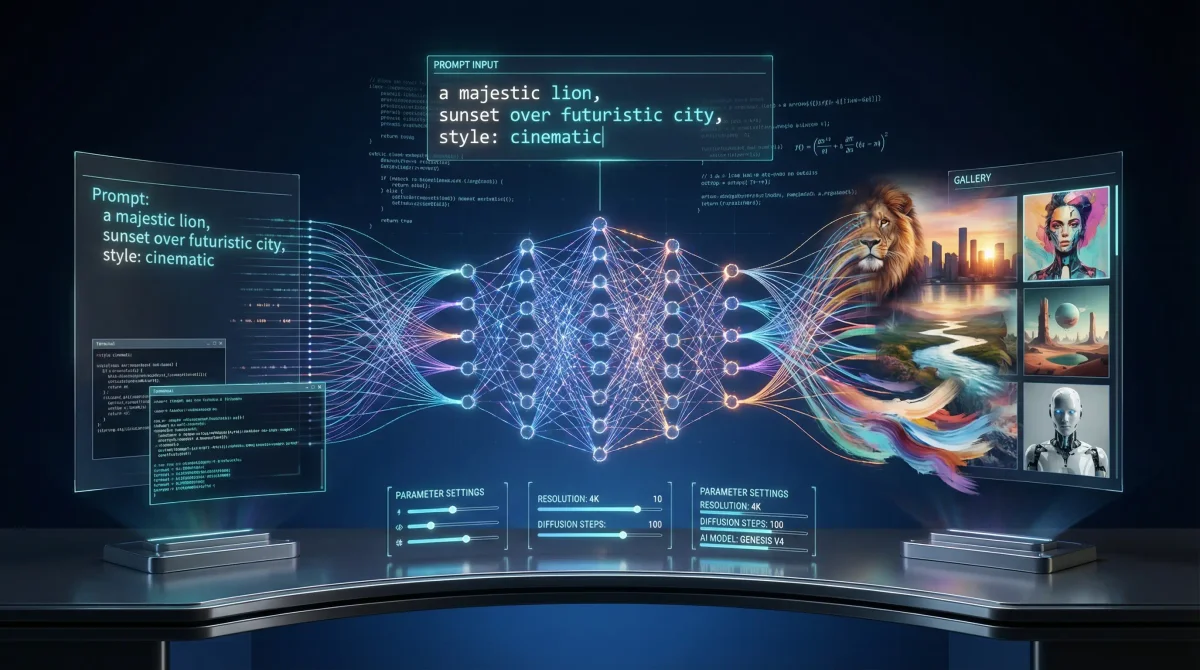
Stable Diffusion 3.0 works differently than any previous SD model. The switch from U-Net to Diffusion Transformer (DiT) architecture changes how the model processes prompts and generates images. Text rendering actually works now. Prompt following is accurate enough that you can specify spatial relationships and get what you asked for.
If you are still using SDXL prompting techniques with SD3, your results probably look off. This guide covers installation, prompting, settings, and workflow integration.
What Makes SD3 Different
SD3 uses a Multimodal Diffusion Transformer (MMDiT) architecture with separate weights for image and language representations. The model comes in sizes from 800M to 8B parameters. The 2B parameter Medium version is what most people run locally.
Text rendering is the obvious improvement. SD 1.5 couldn’t spell. SDXL got better but still mangled words regularly. SD3 actually generates legible text. You can prompt “a sign that says ‘OPEN 24 HOURS’” and get exactly that, readable and correctly spelled.
Prompt following is more accurate. When you specify “a skull above a book, with an orange on the right and an apple on the left,” SD3 places objects where you asked. SDXL would get maybe two out of three correct. SD 1.5 would ignore half the prompt.
Setting Up Your Environment
SD3 Medium needs at least 8GB VRAM. 12GB or more runs better. NVIDIA cards have better tool compatibility than AMD, though both work.
Hugging Face hosts four different SD3 Medium packages. The difference is which text encoders are included. SD3 uses three encoders: two CLIP models and one large T5-XXL. The T5 encoder is why SD3 understands prompts better, but it eats memory.
I recommend sd3_medium_incl_clips_t5xxlfp8.safetensors. This includes all three encoders with T5 compressed to fp8. Good balance of quality and memory use. If you have VRAM to spare, the fp16 version is slightly better. If you are tight on memory, the CLIP-only version works but prompt adherence drops noticeably.
ComfyUI is the easiest way to run SD3 locally. Clone the repo, install dependencies, download model weights, drop the file in the checkpoints folder. That’s it.
The installation process takes about 10-15 minutes on a decent internet connection. The model weights are around 5-6GB depending on which version you choose. Make sure you have enough disk space—I recommend at least 20GB free to account for the model, ComfyUI itself, and generated images.
If you run into CUDA out of memory errors, you have options. Lower the resolution to 768x768 temporarily. Use the CLIP-only model version. Enable model offloading in ComfyUI settings, which moves parts of the model to system RAM when not actively in use. This slows generation but prevents crashes.
For code-based workflows, the Hugging Face Diffusers library works well. Install diffusers, transformers, and accelerate, then load the model with a few lines of Python. This approach is better for batch processing, API integration, or building SD3 into larger systems. You get more control over the generation pipeline and can customize every parameter programmatically.
Mastering the New Prompting Paradigm
Prompting SD3 is nothing like prompting SDXL. Everything you learned about keyword lists and comma separation needs to be reconsidered.
SD3 accepts prompts up to 10,000 characters. You won’t need that much, but it means you can stop worrying about length and focus on being specific. Write like you are talking to a photographer. Use complete sentences.
Bad prompt: “woman, portrait, beautiful, detailed”
Good prompt: “A close-up portrait photograph of a woman in her late twenties with wavy auburn hair and green eyes, wearing a cream-colored turtleneck sweater. Soft window light from the left creates gentle shadows on her face. Shot with an 85mm lens at f/1.8, creating a shallow depth of field with a softly blurred background.”
Be explicit. “Red background” is vague. “Standing against a solid red backdrop” is clear. “Holding sign” could mean anything. “Holding a white cardboard sign with black text” tells SD3 exactly what you want.
For text in images, put the words in double quotes and keep them short. “A street sign that says ‘No Parking’ in bold red letters” works reliably.
Here’s the big change: don’t use negative prompts. SD3 wasn’t trained with them. When you add a negative prompt, it doesn’t remove what you don’t want. It just adds noise and varies the output like changing the seed. If you want to avoid something, describe what you do want instead.
Optimal Generation Settings
SD3 needs different settings than SDXL. Using SDXL values produces mediocre results. Here’s what actually works.
Image dimensions: SD3 works best around 1 megapixel. Use 1024x1024 for square images. For widescreen, try 1344x768 or 1536x640. Portrait works at 832x1216 or 896x1088. Dimensions must be divisible by 64.
SD3 handles wrong resolutions better than previous models. Go too large and you get a decent image in the center with repeating patterns at the edges. Go too small and the image crops instead of distorting. SDXL would generate multiple heads or weird duplications. SD3 just crops or tiles.
Inference steps: Use 28 steps. SDXL used 20. SD3 can make recognizable images in 8-10 steps, but they have noise artifacts and look incoherent. 26-36 steps is the sweet spot for sharp, detailed images.
Something weird happens with steps in SD3. As you increase steps, the content can change, not just the quality. A vague prompt like “a person” might give you different ages, genders, or ethnicities at different step counts. If you’re not getting what you want, try different step values.
Guidance scale (CFG): Use 3.5 to 4.5. Much lower than SDXL. If your images look “burnt” with too much contrast, lower the CFG. Higher values don’t improve quality in SD3. They just add artifacts. Lower CFG also reduces the difference between the full T5 encoder and CLIP-only versions, which helps if you’re short on memory.
Sampler and scheduler: Use dpmpp_2m with sgm_uniform in ComfyUI, or dpm++ 2M in Automatic1111. Euler works too. Don’t use ancestral or sde samplers. The karras scheduler doesn’t work with SD3.
Shift: SD3 adds a new parameter called shift for timestep scheduling. Higher values handle noise better at higher resolutions. Default is 3.0. Try 6.0 for cleaner results. Lower values like 1.5 or 2.0 give a more raw, less processed look that works for certain styles.
Advanced Workflow Techniques
Once you have the basics down, here are some techniques that take advantage of SD3’s specific strengths.
Typography and text effects: You can finally generate text-based images without ControlNet. “The word ‘FIRE’ made of flames and molten lava, intense heat, glowing embers” produces readable, stylized text. Signage, posters, text art—all possible through prompting alone.
Multi-subject compositions: SD3 understands spatial relationships. “A man and woman standing side by side, the man on the left wearing a blue suit, the woman on the right wearing a red dress, both facing the camera” generates exactly that. Correct positions, correct attributes for each person.
Style blending: You can combine style references in one prompt and get coherent results. “A portrait in the style of Renaissance oil painting combined with modern street art aesthetics, featuring bold colors and classical composition” actually blends both influences instead of picking one.
Photography terminology: SD3 responds well to camera specs. “Shot with a 35mm lens at f/2.8, three-point lighting with a key light from the right, fill light from the left, and rim light from behind” gives clear direction about the photographic look you want.
Multiple text encoder prompts: This is experimental, but you can technically send different prompts to each text encoder. Try passing style information to the CLIP encoders and detailed subject descriptions to T5. Results vary, but it’s worth testing.
Real-World Prompt Examples
Here are tested prompts that work well with SD3, organized by use case.
Product photography: “A sleek wireless earbud case on a minimalist white surface. Soft studio lighting from above creates subtle shadows. The case is matte black aluminum with a small LED indicator glowing blue. Shot with a macro lens at f/2.8, shallow depth of field blurs the background. Product photography style, clean and professional.”
Character design: “A cyberpunk street vendor in their 40s with weathered features and silver-streaked black hair tied back. They wear a patched leather jacket over a faded band t-shirt. Neon signs reflect in their augmented reality glasses. Standing in a narrow alley with steam rising from grates. Cinematic lighting with strong rim light from neon signs. Digital art style with painterly textures.”
Architectural visualization: “A modern minimalist house exterior at dusk. Floor-to-ceiling windows reveal warm interior lighting. The structure features clean lines, white concrete walls, and natural wood accents. A reflecting pool in the foreground mirrors the building. The sky transitions from deep blue to orange near the horizon. Architectural photography style, shot with a tilt-shift lens to keep all planes in focus.”
Abstract art: “Flowing ribbons of liquid gold and deep purple intertwine in three-dimensional space. The ribbons catch light along their edges, creating bright highlights against a black void. Small particles of light drift between the ribbons like fireflies. The composition spirals from bottom left to top right. Abstract digital art with photorealistic rendering and volumetric lighting.”
Editorial portrait: “A portrait of a chef in their restaurant kitchen during service. They’re focused on plating a dish, hands mid-motion. Soft natural light from a window mixes with warm overhead kitchen lights. They wear a white chef’s coat with rolled sleeves. Shallow depth of field keeps the chef sharp while the busy kitchen blurs behind them. Documentary photography style, candid moment.”
Notice how each prompt includes the subject, setting, lighting, technical camera details, and style reference. This structure consistently produces good results with SD3.
Performance Optimization and Troubleshooting
Generation speed: On an RTX 3090, SD3 Medium takes about 15-20 seconds for a 1024x1024 image at 28 steps. RTX 4090 cuts this to 10-12 seconds. Lower-end cards like RTX 3060 with 12GB VRAM take 30-40 seconds. If generation is slower than expected, check that you’re using the fp8 model version and that CUDA is properly installed.
Memory management: If you hit out-of-memory errors, the first thing to try is lowering resolution. Drop from 1024x1024 to 896x896 or 832x832. This significantly reduces VRAM usage. Second, use the CLIP-only model version which cuts memory requirements by about 40%. Third, enable attention slicing in your generation settings—this trades speed for memory efficiency.
Quality issues: If images look noisy or have artifacts, check your CFG value first. Values above 5.0 often cause problems. Second, verify you’re using 26-36 steps. Too few steps produce noise, too many can introduce weird artifacts. Third, make sure you’re using the recommended samplers—dpmpp_2m or Euler. Other samplers produce inconsistent results.
Prompt not working: If SD3 ignores parts of your prompt, the issue is usually vagueness. Go back and add specific details. Instead of “a dog,” specify “a golden retriever puppy with floppy ears.” Instead of “sunset,” describe “golden hour lighting with warm orange tones and long shadows.” The more specific you are, the better SD3 follows your intent.
Text rendering problems: If text in your images looks garbled, keep it shorter. SD3 handles 2-4 words reliably. Longer phrases get less consistent. Make sure you’re using double quotes around the text in your prompt. And verify you’re using the full T5 encoder version, not CLIP-only—text quality drops significantly without T5.
Common Pitfalls and How to Avoid Them
Treating SD3 like SDXL: This is the most common mistake. Short keyword prompts don’t work well. Switch to descriptive sentences and your results improve immediately.
Using negative prompts: They don’t work in SD3. They won’t remove what you don’t want. They just add noise. Rethink your positive prompt to be more specific instead.
Setting CFG too high: Values like 7.0 or 7.5 that worked in SDXL produce burnt, over-contrasted images in SD3. If your outputs look harsh, lower the guidance scale to 3.5-4.5.
Expecting perfect hands: SD3 hasn’t improved hand rendering over SDXL. Hands are still a problem. If you need accurate hands, plan to use inpainting or other fixes.
Wrong resolutions: SD3 handles non-standard sizes better than SDXL, but you still get best results at the recommended resolutions. Need unusual dimensions? Generate at a supported resolution and crop or upscale afterward.
Integrating SD3 Into Your Creative Workflow
SD3 fits specific use cases better than others. Here’s where it works well.
Concept iteration: SD3’s accurate prompt following makes it good for exploring variations quickly. Change a compositional detail in your prompt and see it reflected in the output. This speeds up the concept phase.
ControlNet templates: SD3’s composition accuracy means you can generate template images for use with SD 1.5 or SDXL models. Create the layout you want in SD3, then use it as ControlNet input for models with more fine-tuned options.
Text-heavy designs: Posters, signage, infographics with text elements—these are now possible without external tools. SD3 can generate them directly.
Style references: When you need to communicate a specific aesthetic, SD3 understands complex style combinations. Good for art direction, mood boards, style guides.
Themed variations: Need multiple images that share specific elements but differ in other ways? SD3’s consistent prompt adherence keeps the shared parts consistent across generations.
Comparing SD3 to Other Models
Understanding when to use SD3 versus other models helps you choose the right tool for each job.
SD3 vs SDXL: SD3 wins on text rendering and prompt accuracy. SDXL has a larger ecosystem of fine-tuned models and LoRAs. If you need a specific style that exists as an SDXL fine-tune, use SDXL. If you need accurate text or complex multi-subject compositions, use SD3. For general photorealism, they’re roughly comparable, though SD3 handles unusual prompts better.
SD3 vs Midjourney: Midjourney produces more aesthetically pleasing images out of the box with less prompting effort. SD3 gives you more control and runs locally. Midjourney is better for quick concept art and stylized work. SD3 is better when you need precise control over composition, text, or specific technical requirements.
SD3 vs DALL-E 3: DALL-E 3 has better general image quality and understanding of complex scenes. SD3 runs locally and is open source. DALL-E 3 costs money per generation. SD3 is free after the initial setup. For commercial work where you need full control and no usage restrictions, SD3 is the clear choice.
The practical answer is to use multiple models. Generate concepts in Midjourney, refine compositions in SD3, and use SDXL with specific LoRAs for final style passes. Each model has strengths, and combining them produces better results than relying on any single tool.
Looking Forward
SD3 is a real step forward for open-source image generation. The switch to Diffusion Transformers brings capabilities that used to be exclusive to DALL-E 3 and Midjourney v6.
The current limitations—hand rendering, lack of fine-tuned models—will probably improve as the community builds specialized versions. The architecture is solid. The potential is there.
Focus on SD3’s actual strengths: text rendering that works, accurate prompt following, understanding of multi-subject compositions. Write prompts in natural language. Start with the recommended settings and adjust from there.
Moving from SDXL to SD3 means unlearning some habits. Short keyword prompts don’t work anymore. Negative prompts are useless. CFG values need to be lower. But once you adjust, you get more predictable results and access to capabilities that weren’t possible before.